

Don’t hate us, but you could have the best content on the planet and still not rank.
It’s nothing personal. In fact, it’s a challenge Brafton’s Content Marketing Strategist, Aliah Achilles, often encounters while reviewing clients’ SEO performance or conducting content audits.
“Even when the content itself is strong and well-optimized from an SEO perspective, it isn’t always being set up for success once it’s published in the CMS,” she advises.
The issue is by no means insurmountable. Simple details like missing or ineffective H1s, meta descriptions, image alt text or internal links can end up limiting the content’s ability to perform.
Armed with a vision, our strategic protagonist put her mental faculties to work and created an SEO checklist addressing the core issues standing between you and your page 1 rankings. You could say she’s remediating the “Achilles heel” of SEO performance.
Today, we’re sharing Aliah’s insights (plus a downloadable checklist), so you can kiss page 3 goodbye, confident you’ve covered your bases.
Subscribe to
The Content Marketer
Get weekly insights, advice and opinions about all things digital marketing.
Thank you for subscribing to The Content Marketer!
Title and Meta Tags
1. H1 Tag (Title)
Importance: Critical.
The H1 tag is the main heading of your blog post, and it impacts your on-page rankings. It should clearly describe your content using the primary keyword, and there should be only one H1 per page.
On many platforms, including WordPress, your post title automatically becomes your H1.
2. Meta Title
Importance: Critical.
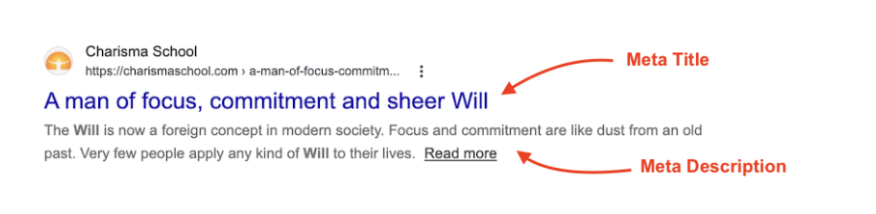
That blue clickable link that appears beneath your website in the SERPs is called a meta title. In SEO, it’s one of your meta tags. It should look similar to, but not identical to, your H1.
On WordPress, install the Yoast SEO or Rank Math plugin — both of which are free. Scroll below the editor to the „SEO Title“ field, and write a content description using 60 characters or fewer.
3. Meta Description
Importance: High.
The short descriptive copy beneath your meta title is your meta description, and it’s also a meta tag. Use this to provide context about your content.
In WordPress, head to your Yoast or Rank Math plugin and navigate to the „Meta Description“ field beneath your editor. Type 150 to 160 characters — and make it compelling.
4. URL Slug
Importance: High.
A URL slug is the readable part of your web address that follows your base URL. It’s classified as a meta tag, too, so keep it clean, clear and descriptive.
- Good example: yoursite.com/THIS-PART-HERE
- Terrible example: yoursite.com/7734-temp-id=98234-xkj82?ref=yourbrand_44_zz
In WordPress, below “Title,” click „Permalink“ or „URL Slug.“ Edit the text to include your keyword, using hyphens to separate words.
Heading Structure
5. Proper H2-H6 Hierarchy
Importance: High.
Similar to an H1, the H2s, H3s, H4s and so on, are hierarchical subheadings that organize your content into a logical structure. Your subheads impact your on-page rankings.
- H2s: The main sections of your article. There should usually be around 5 to 8 of them.
- H3s: Subsections to break your main sections into smaller parts. Every H3 should be relevant to the specific H2 above it. The same pattern continues as you move through to H6.
In your blog editor, highlight subheading text and use the formatting dropdown, which usually reads „Paragraph“. Select “Heading 2” for main sections and “Heading 3” for subsections. You’ll find WordPress and Google Docs have this dropdown.
Note: H6s exist, but you’ll rarely need anything more granular than an H3.
Another note: You can adjust the size and font in these blog editors. Consider your choice from a design perspective to make sure the UX and SEO are aligned.
6. Keywords in Subheadings
Importance: Medium.
Another way to boost your on-page rankings is to use variations of your primary keyword in subheadings to reinforce topic relevance. You don’t need to force this; just include them naturally in 2 to 3 headings.
Content Quality
7. Content Length
Importance: High.
The total word count of your blog post, including the intro, body copy, headings and conclusion, makes up your content length. If the post is too short, you’ll have insufficient word count to cover the topic thoroughly, from an SEO standpoint.
As you’re writing in Google Docs or your blog editor, check the word count. In WordPress, head to the bottom left of the screen > Google Docs: Tools > Word Count.
At Brafton, we use MarketMuse, Clearscope and contentmarketing.ai to optimize copy; all provide word-count recommendations to ensure sufficient length. If you’re unsure, target 1500 to 2000+ words for competitive topics.
8. Internal Links
Importance: High.
Internal links (← like this one) are small, clickable anchor texts that link to other relevant pages on your website.
While writing, highlight relevant anchor texts, keeping them roughly 2 to 5 words. To create a link, click the chain icon in your editor and paste relevant URLs from your other blog posts.
As a best practice, add one link for every 250 words on average.
9. External Links
Importance: Medium.
External links (← like that one) connect to authoritative external sources and other trusted websites that support your points.
Find 2 to 3 authoritative sources, such as .gov sites and industry leaders. Highlight the relevant anchor text in your post, click the chain icon and paste the external URL. To keep users on your site, it’s a good idea to set it to open in a new tab.
10. Anchor Text Optimization
Importance: Medium.
Those “clickable words” in your blog are your anchor text and should describe where the link goes.
Instead of linking words like „click here“ or „this article,“ use descriptive, keyword-rich phrases like „our guide to keyword research“ or „Google’s algorithm update.“
11. Broken Links Check
Importance: Medium.
You’ll need to regularly check in to ensure your links actually work and don’t lead to error pages.
After writing, click every link to make sure it’s functional, or install the „Broken Link Checker“ plugin for WordPress. Alternatively, use deadlinkchecker.com to scan your URL and identify issues.

Images and Media
12. Image Alt Text
Importance: High.
This is a descriptive alternative text for all images that helps search engines and visually impaired users identify your imagery.
To create one, click on the image in your editor and look for the „Alt Text“ or „Alternative Text“ field (in sidebar or pop-up). In WordPress, it’s the right sidebar. Type 5 to 10 words describing the image.
13. Image File Names
Importance: Medium.
Before you upload your visuals, rename the image file on your computer with a descriptive, keyword-rich filename — not random numbers. Place hyphens between words.
- Good example: “seo-blog-checklist.jpg”
- Bad example: “IMG_1234_v6_final.jpg”
After you’ve renamed the image, upload it to your blog.
14. Image Compression
Importance: High.
When you reduce your image file sizes, pages load faster without losing quality — which is especially crucial for mobile optimization.
Before uploading your images, head toTinyPNG.com or Compressor.io. Drag your images in and download the compressed versions. Alternatively, you can use the ShortPixel or Imagify plugin for WordPress to automatically compress them.
15. Image Format
Specific types of image files (e.g., JPG, PNG and WebP) serve specific purposes online. You want to make sure each image type is in its appropriate format. Use JPG for photos and PNG for logos or graphics with transparency.
For the best compression supported by all modern browsers, convert images to WebP using Convertio.co/jpg-webp before uploading.
Technical SEO
16. Mobile Responsiveness
Importance: Critical.
Read that again: critical. Your blog must look good and work properly on mobile devices, like phones and tablets.
The best way to ensure this is to preview your post before publishing. In WordPress, click the „Preview“ button. Otherwise, go to search.google.com/test/mobile-friendly, paste your URL and click „Test URL“. If your theme or platform creates any issues, find them, fix them and retest before you publish.
17. Page Speed
Importance: Critical.
Google favors faster sites, and your page speed reflects how quickly your page loads on desktop, laptop and mobile devices. You’re aiming for a fast loading time (under 3 seconds).
Navigate to PageSpeed Insights and paste your blog URL. Click „Analyze“ and remediate any red or orange items. To compress any heavy images on WordPress, you can use a caching plugin like WP Rocket or W3 Total Cache.
18. SSL Certificate
Importance: Critical.
This is a security signal that makes your URL start with „https://“ (trusted) rather than „http://“ (not trusted). It indicates an HTTPS connection, which is secure.
Check your URL and see whether it starts with „https://“ (not „http://“). If it doesn’t, contact your hosting provider and ask them to install a free SSL certificate. It usually takes 5 minutes.
19. Canonical Tag
Importance: High.
The canonical tag is code that tells Google which version of a page is the „official“ one, preventing duplicate content issues.
In WordPress, both Yoast and Rank Math automatically add this. If you’re using Wix or Squarespace, they’ll add it automatically, too. If you’re doing it manually:
- Go to your page HTML <head>
- Add <link rel=“canonical“ href=“https://yoursite.com/your-post-url“>
20. Robots Meta Tag
Importance: High.
The code that tells search engines whether to show a specific page in search results is called the robots meta tag. It controls search engine indexing, so naturally, it matters for your SEO.
If you’re using WordPress, go to either Yoast or Rank Math and open the Advanced tab > Meta Robots. It should always be set to „index,“ rather than „noindex“.
21. XML Sitemap
Importance: Medium.
Google likes to have a file listing all your website pages, which helps it find and index them. You’ll need to add all of your new posts to the sitemap.
In WordPress, Yoast and Rank Math automatically update your sitemap at “yoursite.com/sitemap.xml.” You’ll need to submit this to Google Search Console > Sitemaps > enter „sitemap.xml“.
Schema Markup
22. Article Schema
Importance: High.
A schema is special code that gives Google structured data about your article, such as the author and date.
Use Rank Math or Schema Pro plugin in WordPress. Navigate to Edit post > Schema tab > Type: Article. Then, fill in the headline, author and date of publication.
23. Author Schema
Importance: Medium.
Similarly, the author schema is an author information markup that identifies who wrote the article.
Here, you’ll need to go to WordPress Rank Math > Schema tab > Person schema.
Add a name, bio and social links if applicable. Alternatively, you can use the „Author Review“ plugin.
24. Breadcrumb Schema
Importance: Low.
In the SERPs, you’ll find a string of code showing the navigation path to your content. This is also structured data to add, and it looks like YourURL > Blog > ArticleTitle.
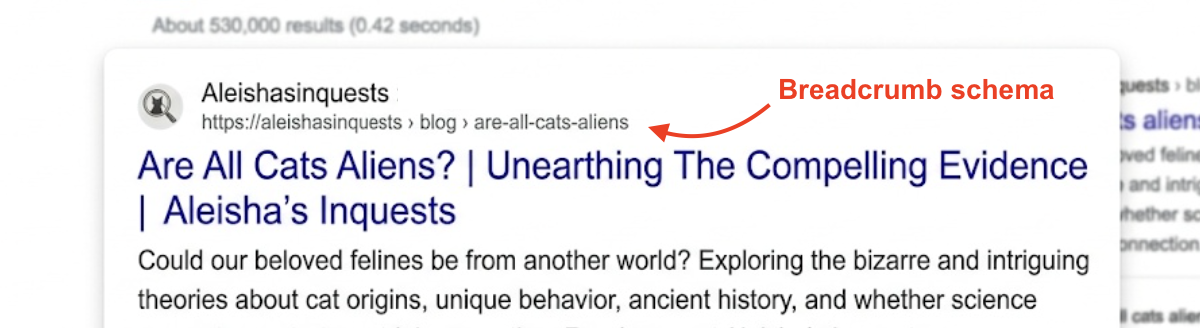
In WordPress, enable breadcrumbs in Yoast (SEO > Search Appearance > Breadcrumbs), or use the Breadcrumb NavXT plugin.
25. FAQ Schema
Importance: Low.
FAQ schema is code that marks up question-and-answer sections to potentially appear in search results. This should only be used if there is a Q&A section on the blog page — you’ll want more than 2.
Head to the Rank Math FAQ block or Schema Pro in WordPress. Add question and answer pairs in the editor. Then, they’ll appear as expandable FAQs and generate schema. You can also manually code these using the schema.org/FAQPage format.
User Experience
26. Structure
Importance: High.
In your content, it’s recommended to leverage bullet lists, numbered lists, summaries and short sentences for definitions. This helps AI crawlers skim and crawl content for rich snippet inclusions.
Most likely, this will be part of your copywriting process, so keep it in mind as you’re creating the content.
27. Clear Call-to-Action
Importance: Medium.
We need to give our readers instructions on what to do next to create a clear path to conversion or inspire the next-best action. Examples include „Download our guide“ or „Read this next.“
At the end of your post (or throughout it), add buttons or links. Make them stand out with button blocks.
If you’re stuck, check out our guide on creating the right CTA for different content types.
28. Table of Contents
Importance: Medium.
A table of contents (TOC) is a clickable list at the top of long-form content showing all major sections of your post.
Creating one in WordPress is significantly easier with the „Easy Table of Contents“ plugin, which automatically generates a TOC from your H2 and H3 headings. You can also manually create jump links by highlighting the heading, clicking the “link” icon, adding the ID and linking to it from the top.
29. Multimedia Balance
Importance: Medium.
You want a balanced mix of text, images, videos and infographics on your page to keep readers engaged. Aim to add an image every 300 to 500 words. Consider embedding relevant YouTube videos using the embed or video block, and creating simple infographics with Canva.com.
Upload these throughout your content to break up walls of text.
30. White Space
Importance: Medium.
Empty space around text and images makes content easier to read, so add adequate spacing between elements.
Hit “Enter” twice between paragraphs, and avoid writing more than 3 to 4 lines of copy before creating a new paragraph. Heading breaks approximately every 200 to 300 words also help. Since margins are usually auto-set by your theme choice, consider them relevant to strategic presentation as you’re picking a layout you like.
Indexing
31. Google Search Console Submission
Importance: High.
Indexing involves manually telling Google about your new blog post so it gets indexed faster. You’ll need to request it.
Log in to search.google.com/search-console. In the top search bar, paste your new blog URL. Click the „Request Indexing“ button, and Google will crawl the page within hours or days, rather than weeks.
32. No Index Errors
Importance: Critical.
Here, you’re confirming your page is set to be indexed, thereby also confirming that there’s no accidental code telling Google not to show your page in the SERPs.
Check the page source by right-clicking on the page and navigating to “View Page Source”. Search (Ctrl+F) for „noindex,“ and it should find nothing. In Yoast or Rank Math, ensure „Allow Search Engines“ is on.
33. Crawlability
Importance: Critical.
Crawlability determines whether Google’s bots can access and read your page without barriers.
To check this, go to Google Search Console> Coverage Report. Check that your URL isn’t listed under „Excluded“. Screaming Frog SEO Spider is free for 500 URLs and can crawl your site to check for any blocks.
Social Sharing
34. Open Graph Tags
Importance: Medium.
You can, and probably should, control how your posts look when you share them on Facebook or LinkedIn to best optimize them.
In WordPress, Yoast and Rank Math automatically add this code. However, if you want to do it manually, add to the <head>: og:title, og:description, og:image, og:url.
Test your code at developers.facebook.com/tools/debug by pasting in the URL and clicking „Scrape Again“.
35. Social Share Buttons
Importance: Low.
Buttons make it easy for readers to share your post on social media, which benefits SEO and brand discovery.
For WordPress, install the „AddToAny“ or „Social Warfare“ plugin. Select which platforms you want to show and where to position them (at the top or bottom). In Wix, add the Social Bar app; in Squarespace, use the built-in social sharing blocks.
Final Review
36. Link Functionality
Importance: High.
These links won’t give us a break, am I right? But the final checks are worth it. These ensure all your links open correctly when your readers click them. Before publishing, hover your cursor over every link in your editor and press Ctrl+Click (Cmd+Click on Mac) to open them in a new tab. Make sure they all load properly, and fix or remove broken ones.
37. Publish Date
Importance: Medium.
Showing the accurate date your article was published helps with freshness signals.
If you’re using WordPress, head to Edit Post > Status & Visibility > Publish, and you’ll see the date. In Wix, navigate to Post settings > Date.
A word of caution: Don’t backdate posts; use the current one. Update the Yoast or Rank Math schema „datePublished,“ if necessary.
38. Author Bio
Importance: Low.
Providing information about who wrote the article builds trust and authority.
At the end of each post, add a section „About the Author,“ including the name, a photo, a 2 to 3 sentence bio and links to their social profiles or website.
This feature is built into some themes on WordPress, but if it’s not available on yours, you can use the „Simple Author Box“ plugin.
DIY SEO: Yours for the Taking
There you have it — a simple, repeatable checklist to ensure your optimized content is well-positioned to perform in the SERPs before you publish your next post.
It stands to reason that you might not plow through a 3000-word blog every time you post an article — so we’ve created a quick, downloadable checklist to make it easier. Save yourself a copy and refer back to this post whenever you need clarification or direction.
May the SERPs forever be in your favor.